Chapter 7 — Stills and Thumbnails
A still is the image that sits on the face of a card. It doubles as the card’s thumbnail on the wall, the hero image in Schedule mode and the picture on the printed wall. Every card holds at most one still.
This chapter covers getting a still onto a card (drag, inspector button, batch folder, Photos), the rules for matching filenames to scenes, supported formats and where the files live on disk.
Reference files — scouts, storyboards, research, anything that is not the card’s hero image — live in their own chapter (§8). Revision colours and OMITTED badges render on top of the still; they come from the script and the wall state respectively (§5.5, §5.7).
7.1 What Counts as a Still
One image per card, shown:
- On the wall — as the card’s thumbnail under the scene number and action overlay.
- In Schedule mode — on each scheduled card and at the head of the day’s strip.
- In the printed wall — §11.
The first action line from the script still shows through as a fallback label on a card that has no still yet. A still silhouette means “this card is populated, just without a picture” — not an error state.
7.2 Attaching a Still to One Card
Three routes land the same result. Pick whichever matches what you have to hand.
7.2.1 Drag a file onto the card
- 🍎 macOS — drag any image from Finder, Photos or a mail attachment onto the card. The image is copied into the document and becomes the card’s still in one step.
- 📐 iPadOS — drag is technically honoured, but the Photos picker route (§7.2.2) is faster and doesn’t fight the split-view drag gesture.
You can also drop onto an empty slot — Scene Cards creates the new card for you, with the image already attached. This is the quickest way to spin up a placeholder card around a reference photo.
✱ Tip — on macOS you can drop a whole selection of images onto the wall at once. Files with scene-numbered names route to their matching card (§7.4); everything else lands on the slot you dropped on.
7.2.2 Use the Inspector
- Select the card and open the inspector (§6.1).
- Tap or click the Import Image button (
photoicon) in the inspector’s toolbar strip (§6.7). - Choose a file from the picker.
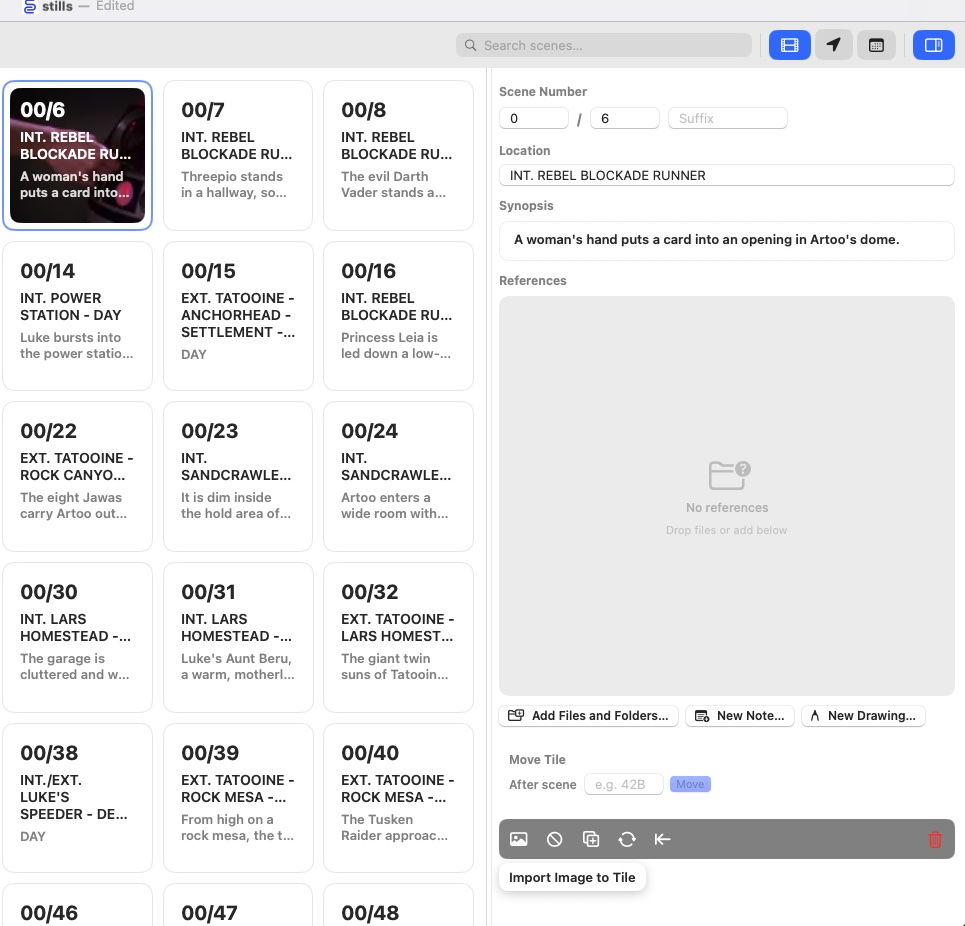
On 📐 iPadOS the picker opens into Files by default. Use the Photos tab on the side to pull from the Camera Roll instead.
7.2.3 Replace an existing still
Importing a new image on a card that already has one replaces it — no confirmation. The old image is overwritten both inline in the card and on disk in the document package.
There is no “Remove Still” command in the current build. To clear a still without replacing it, attach a 1-pixel transparent PNG or drop in a new image and live with the replacement. A proper clear action is on the roadmap.
7.3 Batch Import from a Folder
When you already have a folder of on-set or scout photos, Scene Cards can match them to scenes by filename in a single pass.
7.3.1 🍎 macOS
- Choose
File → Batch Import Images (Folder)…(⌥⌘I). - Select the folder in the Open panel.
- Click Open. Every image in the folder (including subfolders) is scanned, matched by filename (§7.4) and attached to the right card.
Files that don’t match a scene are skipped silently. A progress overlay appears for large batches.
7.3.2 📐 iPadOS
Two entry points, same matching rules:
- From Files — ⋯ overflow → Import Images from Files…, navigate to the folder, select the images.
- From Photos — ⋯ overflow → Import from Photos…. Items picked here are matched by the filename the Photos library stored (which may differ from the original — it is usually the PHAsset’s underlying identifier, not your set-photographer’s slate number). Favour the Files route when names matter.
🔒 Permission required — the Files picker prompts the first time you reach a location outside the app’s own folder. Photos picks use the limited or full access setting from iPadOS Settings → Photos.
7.3.3 When no document is saved yet
On macOS, a batch import into an unsaved document triggers a Save As… sheet. The images are staged in a temp folder and committed into the package the moment you choose a save location. This avoids dropping the images on the floor if you forget to save first.
7.4 Filename Matching Rules
Two forms are recognised.
- Episode-prefixed (
Ep{NN}_Scene_{N}{suffix}) — routes to the named episode. Matches the folder convention Scene Cards itself uses on disk (§7.7), so a round-trip through the package always lines up. - Scene-only (leading digits plus optional letter suffix) —
routes to any episode with that scene number. Everything after the
first separator (
-,_, `,.,(`) is descriptive padding.
| Filename | Parsed as | Matches |
|---|---|---|
Ep01_Scene_5.jpg |
Ep 1, Scene 5 | Exactly that card |
Ep02_Scene_12B.heic |
Ep 2, Scene 12B | Exactly that card |
5.jpg |
Scene 5 (any ep) | Scene 5 on any episode |
5A.jpg |
Scene 5A (any ep) | Scene 5A on any episode |
005_rehearsal.jpg |
Scene 5 (any ep) | Scene 5 on any episode |
12B - set dressing.heic |
Scene 12B (any ep) | Scene 12B on any episode |
12 (wide).jpg |
Scene 12 (any ep) | Scene 12 on any episode |
IMG_3042.jpg |
(no leading digits after the non-separator letters) | Skipped |
Scene-14.jpg |
(leading S, no Ep prefix) |
Skipped |
7.4.1 Disambiguating across episodes
When a document spans multiple episodes and two episodes share a scene number, the scene-only form is ambiguous. Scene Cards handles this two ways:
- Prefix the filename with
Ep{NN}_Scene_—Ep02_Scene_5.jpgpins the photo to episode 2, scene 5, regardless of what other episodes contain. This is the round-trip form Scene Cards writes itself (§7.7), so a photo exported from the package re-imports cleanly. - Let the import surface the collision. For any scene-only name that matches cards in more than one episode, Scene Cards lands the photo on the earliest episode and opens a summary sheet at the end of the run listing every ambiguous file. Each row has a Route to… menu to reassign to a different episode in one tap. Files that didn’t parse or didn’t match anything on the wall are listed there too.
If you prefer a single-episode workflow, import one episode’s photos at a time into a single-episode document — the summary sheet stays empty and there’s nothing to reconcile.
ⓘ Note — numeric filenames like
101_005.jpgparse as scene 101, not “episode 1 scene 5”. Only the explicitEp…_Scene_…prefix triggers the episode match.
7.4.2 Suffix letters
Suffix letters are case-insensitive — 5a, 5A and 5.A.jpg all map
to scene 5A. Uppercase is applied on read so it matches whatever the
inspector wrote.
7.4.3 What doesn’t match
The following are skipped rather than misrouted:
- Filenames starting with a letter, unless the letter is the
Ep{NN}_Scene_prefix (Scene-14.jpg,IMG_3042.jpg). - Filenames where the digits are immediately followed by a non-letter,
non-separator character (
0B77.jpg— reads as scene0, then fails becauseB77.is not a clean suffix + separator). - Files whose UTType does not conform to
public.image— PDFs, videos, documents. Use §8 Reference Files for those.
7.5 Supported Formats
Scene Cards accepts any image the operating system can decode —
internally the check is UTType.image, so every format the OS image
subsystem knows about passes through.
In practice that covers:
| Family | Extensions |
|---|---|
| Ubiquitous | jpg, jpeg, png, heic, heif |
| Legacy / lossless | tiff, tif, gif, bmp |
| Web | webp |
| Camera RAW (where the OS has a codec) | raw, cr2, nef, arw |
The file is read once, scaled to a maximum of 800 px on the longest side, and stored as an inline JPEG (quality 0.7) for fast wall rendering. If the document has been saved, a copy of the original is also written into the package (§7.7). The inline copy is what the wall, inspector and printing all draw from; the on-disk copy is a mirror for package-level tooling and iCloud sync resilience.
ⓘ Note — RAW decoding depends on the host OS. macOS handles most modern RAW variants out of the box; iPadOS is patchier, especially for older cameras. If a RAW import produces a grey tile, convert to JPEG or HEIC in Photos first.
7.6 Replacing, Removing and Undoing
7.6.1 Replace
Drop a new image on the card or run Import Image again. The previous still is overwritten in place — there is no “are you sure” confirmation, and no preserved history.
⌘Z rolls the replacement back to the previous still within the same
session; once the document has been saved and closed, the previous
still is gone.
7.6.2 Remove
There is no UI command to clear a still without replacing it in the current build. If you need an empty card for export, drop in a 1-px transparent PNG as a placeholder.
7.6.3 After a scene re-import
Stills survive a re-import (§5.1.2) — the merge preserves slot
position, stills, references and shoot data on cards that match by
episode + scene + suffix. A scene that has been removed from the
new draft is deleted outright, along with its still. If there is any
chance a scene returns, mark it OMITTED (§5.5) before the
re-import runs.
7.7 Where Stills Live on Disk
A still travels inside the document package in two places:
- Inline on the
Tilerecord asstillImageData— re-encoded JPEG, max 800 px longest side, quality 0.7. This is what the wall, inspector and printing all render from. It is also the copy that travels via iCloud immediately when the document syncs, before theMedia/folder has had a chance to download on a new device. - On disk at
Media/thumbnails/{SceneFolder}.{ext}, preserving the original file extension. This is what external tooling browses when someone opens the package with Show Package Contents on macOS.
Both copies are written for every import path — drag-and-drop, batch folder, inspector photo button, and Photos picker all produce the same result.
{SceneFolder} follows the episode-aware convention used everywhere
in the package (§4.8):
Ep01_Scene_5.jpg
Ep01_Scene_12B.heic
Ep03_Scene_42.png
Episode 0 — a Christmas special, a teaser, anything you number
outside the normal run — writes as Ep00_Scene_N and is cleanly
isolated from the legacy bare Scene_N form.
ⓘ Note — older documents written by a pre-episode-aware build may have
Scene_5.jpgrather thanEp01_Scene_5.jpg. Scene Cards reads both; new writes always use the episode-aware form.
7.8 Where to Go Next
- Attach PDFs, storyboards, scouts and videos — see §8 Reference Files.
- Print the wall with stills — see §11 Printing and Export.
- Scene Cards’ folder layout inside the package — see §4.8.
- Roll an image change back —
⌘Z, as any other tile edit.