Chapter 4 — Documents and Files
A Scene Cards document is a single item you can rename, email, AirDrop or put in iCloud Drive. Behind the scenes it is a package — a folder that looks like a file — containing the wall data, the stills and every report or reference you have attached. This chapter explains how to create, open, save, move and back up that document, and what lives inside it.
If you just want to make a new document and get going, see §2.1. This chapter goes deeper.
4.1 The .scenecards Package
Every production lives in a single .scenecards bundle. One document can
cover the entire run of a series — see §13 Multi-Episode Productions.
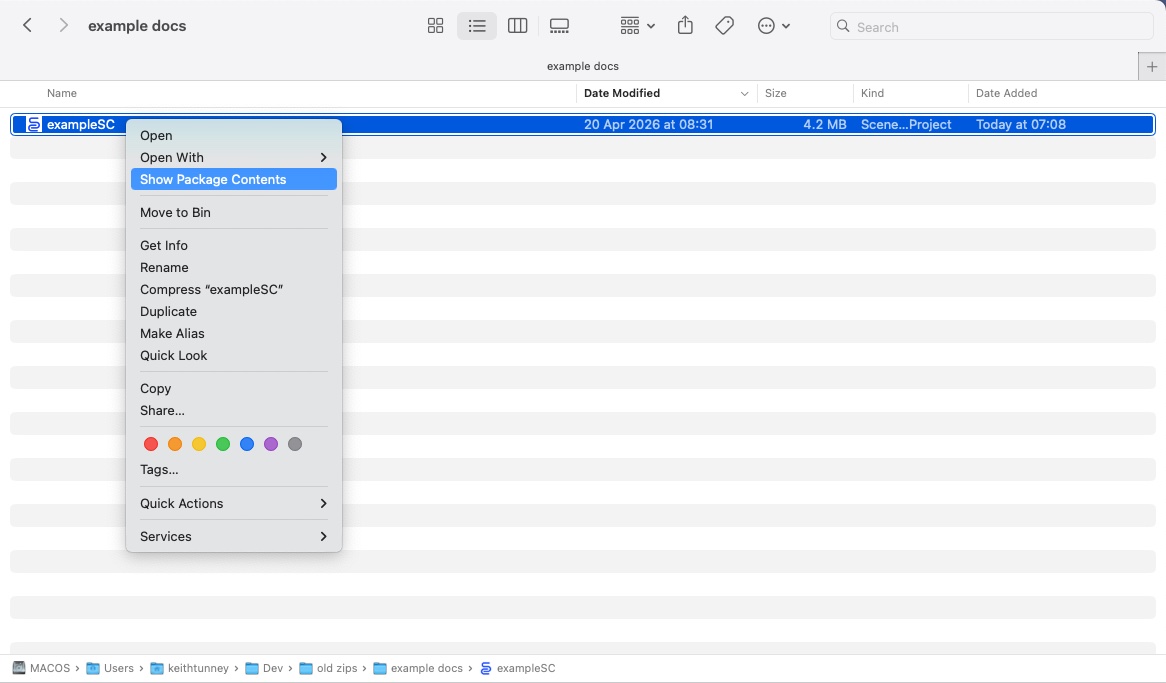
The bundle is a package:
- On macOS, the Finder shows it as a single file with a Scene Cards icon. Right-click and choose Show Package Contents to see inside.
- On iPadOS and iPhone, the Files app treats it as a single file. There is no supported way to peek inside on iPad or iPhone — edit it through Scene Cards.
Inside the package:
| Item | Contents |
|---|---|
payload.json |
The wall state — every card, slot, revision colour, sound entry, schedule row. This is the file Scene Cards actually reads and writes. |
Images/ |
Legacy image store — preserved across saves for documents created before the Media/ layout. New documents rarely write here. |
Media/thumbnails/ |
One still image per card, named EpNN_Scene_N.jpg (or .png / .heic). |
Media/references/EpNN_Scene_N/ |
Reference files attached to a specific card — photos, PDFs, videos, anything you drop. One folder per scene. |
Media/reports/Day_NN_DDMMYY/{type}/ |
Shoot reports, grouped by shoot day and then by type (sound, camera, continuity, callsheets, essentials). Day folders without a parsed date fall back to Day_NN. |
Everything is plain files. If Scene Cards ever fails to open a document, the raw stills and references remain readable by any image viewer or PDF reader — see §19 Troubleshooting.
⚠ Caution — never move or rename files inside the package by hand. Scene Cards tracks them through bookmarks in
payload.json; rearranging the folder tree will break attachments that Scene Cards cannot repair automatically.
4.2 Creating a New Document
Short version — see §2.1 for the full walkthrough.
- 🍎 macOS —
File → New(⌘N). Save to a named location withFile → Save…(⌘S). - 📐 iPadOS — tap Create Wall on the launch screen (or + in the Files browser). iPadOS auto-saves from the first edit.
- 📱 iPhone — tap Create Wall on the launch screen. iPhone auto-saves from the first edit.
A brand-new document ships with an empty wall showing the Empty Wall
box — Import Script… or Open Cloud Wall… (§2.1.4). The wall is
8 cards wide on macOS, 6 cards wide on iPadOS, and 3 cards wide
on iPhone (portrait default). Change it by pinching the wall, or on the Mac
with View ▸ Zoom In / Zoom Out (⌘= / ⌘-, §15.1). Column count is a
setting on each device, not part of the wall.
4.3 Opening an Existing Document
4.3.1 🍎 macOS
- File → Open… (
⌘O) — standard Open panel. - File → Open Recent — jump straight back into a document you closed earlier.
- Double-click a
.scenecardsfile in Finder. - Drag a
.scenecardsfile onto the Scene Cards icon in the Dock.
4.3.2 📐📱 iPadOS and iPhone
- Tap a
.scenecardsdocument in the Files browser that appears on launch. - Tap a document inside the Files app — Scene Cards opens automatically.
- From another app, share a
.scenecardsdocument with Scene Cards via the standard share sheet.
ⓘ Note — if a document was created on a newer version of Scene Cards than the one installed, the payload format may decline to open. Update the app, or open the document on a device that already has the newer version and Save As (macOS) to a compatible copy.
4.4 Saving
4.4.1 🍎 macOS
Scene Cards follows the standard macOS document model.
- First save —
File → Save…(⌘S) and choose a location. iCloud Drive is a sensible default if the document will travel. - Subsequent saves — macOS auto-saves in the background whenever you
make a change. You rarely need to press
⌘Sagain. - Save As… —
File → Save As…(⇧⌘S) forks a copy to a new name and switches to the copy.
4.4.2 📐📱 iPadOS and iPhone
- Auto-save is continuous. There is no manual Save command.
- Closing the document with the back chevron (or the back button on iPhone) commits the latest state.
⚠ Caution — Scene Cards writes the full package on each save. On older devices with slow storage, a very large document (many gigabytes of stills) may take a few seconds to commit when you close it. Wait for the Files browser to reappear before removing power or force-quitting.
4.4.3 What gets saved
Every edit is in one of two scopes:
| Scope | Written to |
|---|---|
| Card fields, slot order, revision colours, sound entries, schedule | payload.json — rewritten on each save |
| Stills, reference files, shoot reports | Media/… — written once when you attach, preserved across subsequent saves |
The Media/ subtree is carried forward untouched on every save, so
attaching a 2 GB reference video does not cause Scene Cards to rewrite 2 GB
every time you change a brief.
4.5 Renaming, Duplicating and Moving
4.5.1 Rename
- 🍎 macOS — click the document name in the title bar and type a new name, or rename the file in Finder.
- 📐 iPadOS — tap and hold the title in the toolbar, or rename from the Files app.
- 📱 iPhone — rename from the Files app.
Renaming is safe — Scene Cards tracks attachments by their location inside the package, not by the package’s outer filename.
4.5.2 Duplicate
- 🍎 macOS —
File → Duplicate(⇧⌘Sbefore naming a copy) forks a working copy in the same folder. - 📐 iPadOS — in the Files app, long-press the document and choose Duplicate.
- 📱 iPhone — in the Files app, long-press the document and choose Duplicate.
Duplicating a document duplicates everything inside — stills, references, reports — so expect it to take time and space proportional to the package size.
4.5.3 Move
You can move a .scenecards document between folders, drives or cloud
services like any other file. Attached media stays intact because it lives
inside the package.
✱ Tip — before a major restructure (rewrites, re-imports), duplicate the document first. The duplicate is a point-in-time snapshot you can fall back to if the new draft goes sideways.
4.6 iCloud Drive, AirDrop and Other Transports
4.6.1 iCloud Drive
Scene Cards documents sync through iCloud Drive like any other file. The package uploads and downloads as one unit, so a 6 GB production with a hundred reference files is a single 6 GB transfer — not a hundred small ones.
- On macOS, save the document into
~/Library/Mobile
Documents/com~apple~CloudDocs/
(or any visible iCloud Drive folder). - On iPadOS or iPhone, create or save the document under iCloud Drive in the Files browser.
- All devices must be signed into the same Apple ID.
⚠ Caution — a single Scene Cards document can easily exceed typical iCloud download sizes on a slow connection. On set, prefer working against a local copy and syncing only between proper networks.
4.6.2 AirDrop and In-App Sharing
From inside the app (📐📱 iPadOS / iPhone) — tap ⋯ → Share Document… to open the system share sheet for the current document.
| Destination | What arrives |
|---|---|
| AirDrop | The .scenecards package intact — tap to open in Scene Cards |
| Messages / Files | Same as AirDrop |
A .zip containing the package — recipient extracts it, then taps the .scenecards file to open |
ⓘ Note — Mail always wraps directory packages in a zip; this is iOS / macOS behaviour, not Scene Cards. The zip is valid: extract it and the document opens normally. AirDrop or a shared iCloud Drive folder avoids the zip step entirely.
From Finder (🍎 macOS) — drag the .scenecards file into a Mail
message or AirDrop it from the Finder toolbar. AirDrop sends the package
intact; Mail zips it as above.
Share Document… is only available once the document has been saved.
If the button is missing, save the document first (⌘S).
4.6.3 USB, SMB, Dropbox, Google Drive
Any service that stores the file intact without opening it works —
compression is unnecessary, the package is already a folder. Be wary of
services that try to “flatten” bundles into zips: if the receiver sees a
.zip instead of a .scenecards, unzip it back into place before
opening.
4.7 Backups
- Time Machine and iCloud Drive’s version history both work on a Scene Cards package as they would on any other file.
- Because the whole package is one bundle, a restored snapshot gives you a consistent state — wall, stills and reports from the same moment.
- Before a risky operation (large re-import, renumber from scene 1, schedule rebuild), duplicate the document (§4.5.2) for a zero-cost manual checkpoint.
✱ Tip — a duplicate sitting next to the live document, renamed with a date (
MyProduction 2026-04-20.scenecards), is the fastest rollback when something goes wrong in the middle of a week.
4.8 Inside the Package (Reference)
This section is for the curious and for advanced recovery. Day-to-day work does not require touching these files.
Open a document with Show Package Contents on macOS. You should see:
MyProduction.scenecards/
├── payload.json
├── Images/                          (legacy, usually empty on new docs)
└── Media/
    ├── thumbnails/
    │   ├── Ep01_Scene_1.jpg
    │   ├── Ep01_Scene_2.heic
    │   └── …
    ├── references/
    │   ├── Ep01_Scene_5/
    │   │   ├── scout_01.jpg
    │   │   ├── storyboard.pdf
    │   │   └── note.txt
    │   └── Ep01_Scene_7/
    │       └── …
    └── reports/
        ├── Day_01_160921/
        │   ├── sound/
        │   ├── camera/
        │   ├── continuity/
        │   ├── callsheets/
        │   └── essentials/
        └── Day_02_170921/
            └── …
Key points:
- Scene folder names encode episode and scene number:
EpNN_Scene_N[suffix]. Documents created before episode-aware folders may still contain plainScene_Nfolders — Scene Cards reads both. - Day folder names use
Day_NN_DDMMYYwhen a shoot date is known, falling back toDay_NN. Existing legacyDay_NNfolders are left in place; new writes go to the dated form. - Thumbnail extensions vary (
.jpg,.jpeg,.png,.heic) — Scene Cards preserves the original format on import.
⚠ Caution — manual edits inside the package are unsupported. If a file must be pulled out (e.g. to recover a reference after Scene Cards cannot open the document), copy it out — do not move. Never rename or delete files inside a working document.
4.9 Where to Go Next
- Multi-episode productions — see §13.
- File format details — see §18 File Format Specification.
- Recovery and diagnostics — see §19 Troubleshooting and §21.
- Import session data (copying cards and attachments between documents) — see §12.